Default Rates - Practice Level

Default Rates - Practice Level

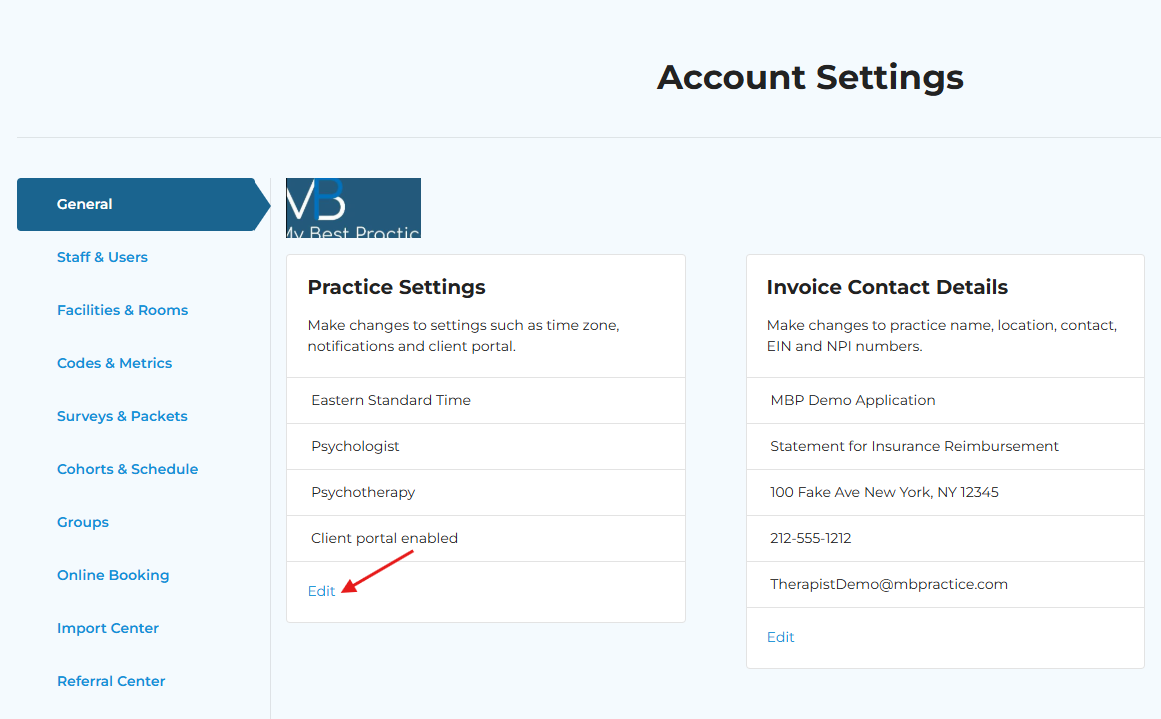
Navigate to Settings - Account Settings.


=


Select the edit link under Practice Settings.


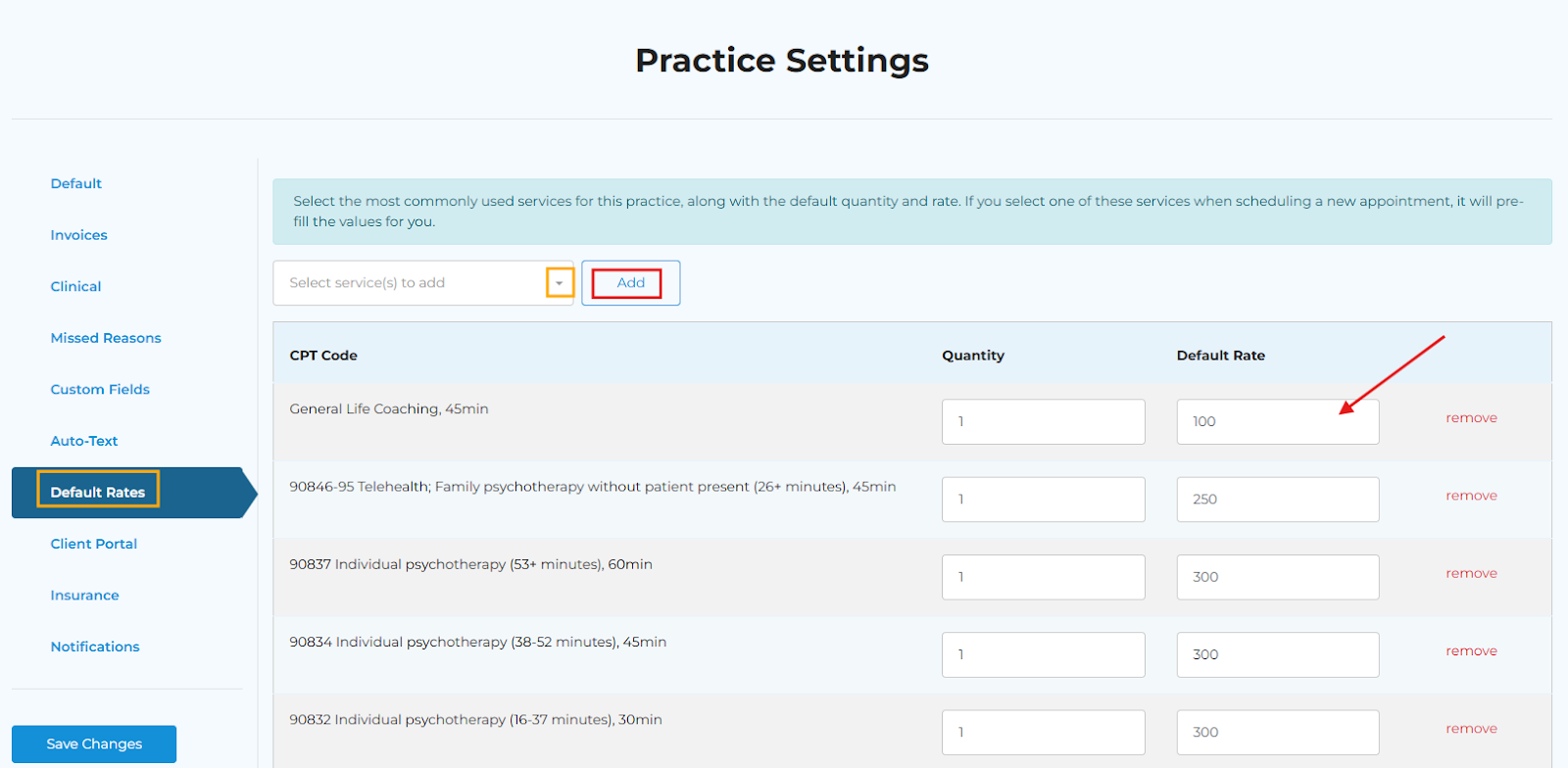
Navigate to Default Rates. Now, choose the service(s) you want to default using the dropdown.

Once completed, select Add. Then, add your default rate(s) and click Save Changes.


    • Related Articles

    • Configuring Practice Settings

      Navigate to the Account Settings section of your account. Click on the “Edit” button on the “Practice Settings” bucket within the General tab. DEFAULT TAB Include Group Appointment on the Scroll This will display group note(s) when scrolling through ...
    • Setting Up a Client's Default Rates

      In addition to setting up a professional's default rates across all clients, you can also set up different rates for specific clients from within their client profiles. Step 1: Navigate to the desired client's profile, and click on the Default Rates ...
    • Setting Up a Professional's Default Rates

      Step 1: Navigate to the professional user's settings by clicking on their name in the Staff & Users list. Step 2: Click into the Default Rates tab on the left-hand side. Step 3: Select service(s) to add from the dropdown (you can select multiple ...
    • Practice Time Zone Update

      Step 1: Go to Account Settings, and then click Edit on Practice Settings. Step 2: Choose your preferred time from the Time Zone dropdown box and then click Save Changes.
    • Setting the Default Insurance Type for the Practice

      Overview Your practice can choose which insurance plan type is automatically selected when adding a new insurance plan to a client chart. Setting a default helps streamline data entry, reduce errors, and maintain consistency across your team. What ...