How to Sort Dianosis Codes
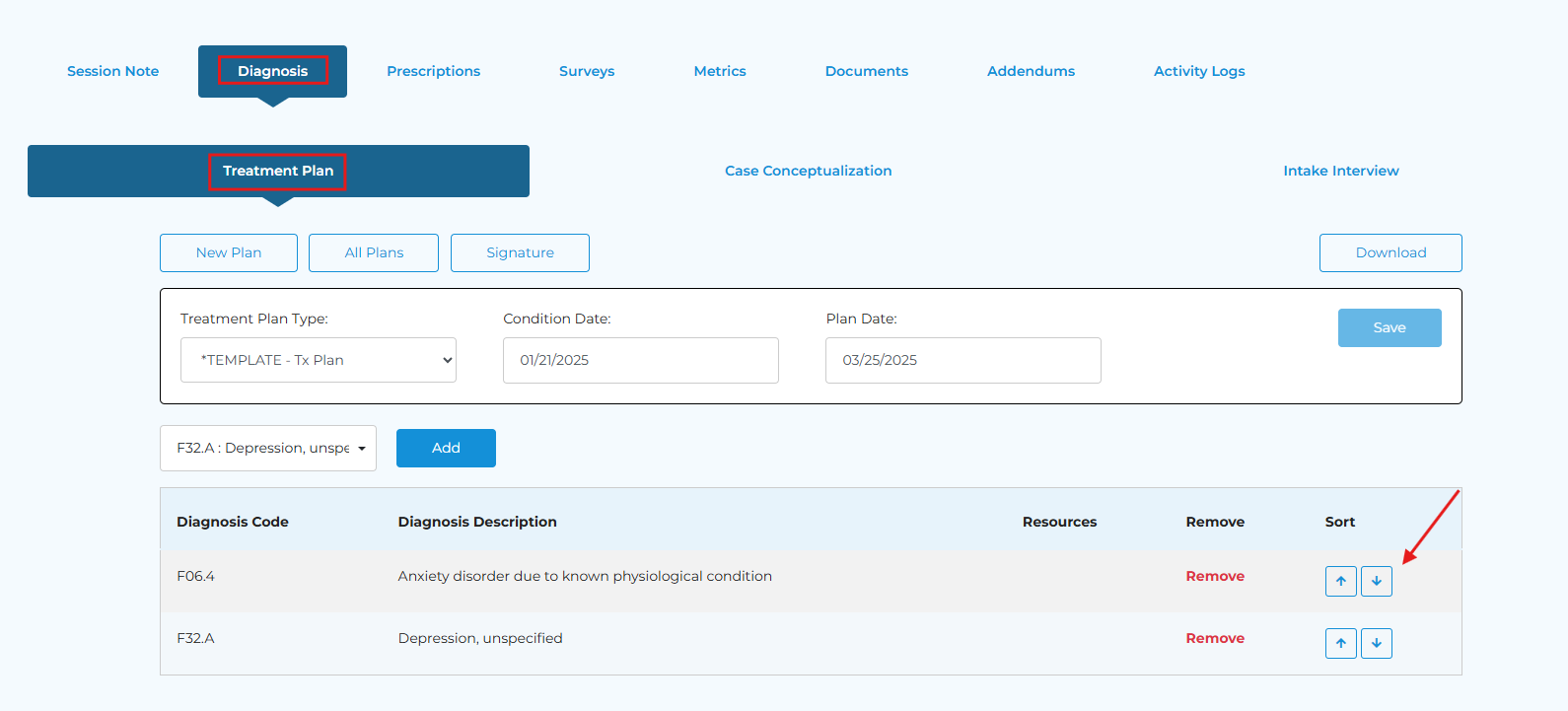
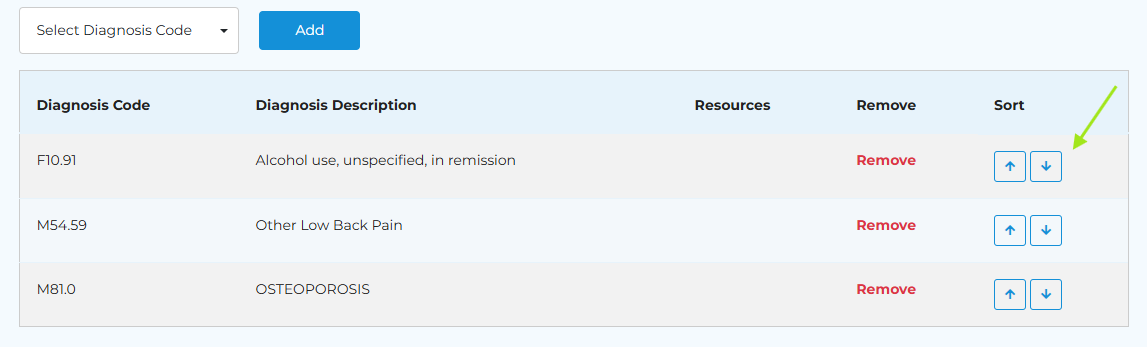
Users can now sort diagnosis codes within the Treatment Plan tab of the session note, or the client chart Diagnosis tab.
Related Articles
Adding New Diagnosis Codes to Codes & Metrics
Step 1: Navigate to Account Settings - Codes & Metrics. Step 2: Select the Diagnosis tab on the right-hand side. Then, choose +Add New Diagnosis. Step 3: Select the type of diagnosis from the dropdown or create a new type by clicking (New). Step 4: ...Adding Diagnosis Codes
STEP 1: Navigate to the “Diagnosis” tab within the desired client’s profile STEP 2: Under the Treatment Methods heading, click on the Select Diagnosis Code drop down Begin typing the code/description in the search bar If the diagnosis is not ...Setting Up the Claims Center
STEP 1: Adding providers to the Claims Center Navigate to Settings from the main menu then click Claims Center. Go to Providers & Payers tab and click on the Add Provider and/or Create Organization button(s). Add Provider - A pop-up box will then ...Submitting UB-04 Claims
In order to utilize UB-04 claim functionality, our team will need to enable it within your account. Please contact support@mbpractice.com. First, you'll need to configure the Claims Center within your account. Setting Up the Claims Center Once your ...Submitting Out‑of‑Network (OON) Claims in My Best Practice
When a provider is not contracted with a client’s insurance plan, claims are considered Out‑of‑Network (OON). My Best Practice allows you to generate and submit OON claims directly through the platform or provide clients with a downloadable HCFA form ...